Skip to product information
1 of 1

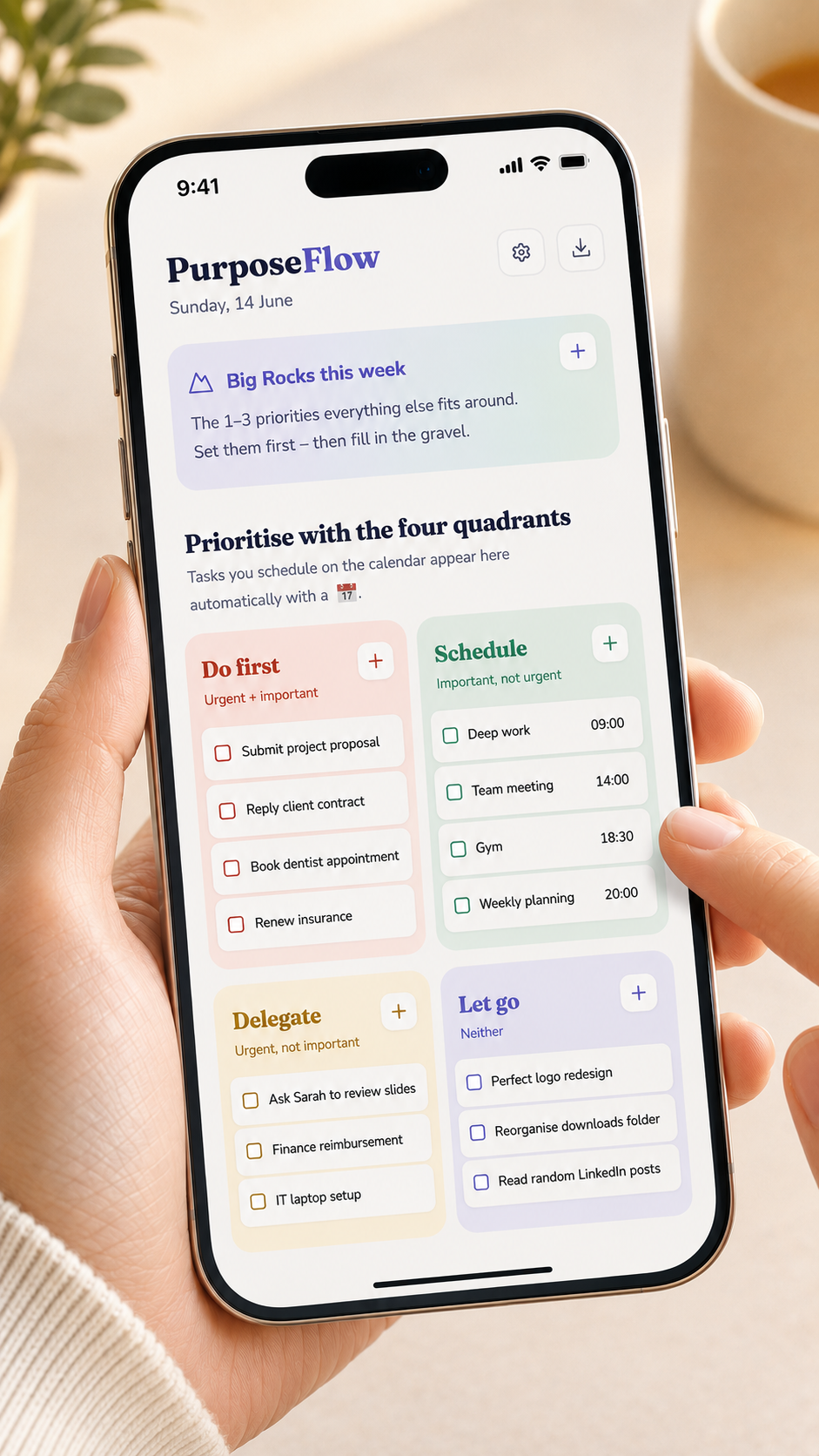
PurposeFlow - Lifetime Access

PurposeFlow - Lifetime Access

Regular price $39.00 SGD
Regular price Sale price $39.00 SGD
Sale Sold out
Shipping calculated at checkout.
Quantity

One-time payment for lifetime access to PurposeFlow - your personal productivity and journaling app. Includes task management, time blocking, habit tracking, and journaling, synced across all your devices.

View full details

How to Fully Maximise Your Digital Planning Experience

How to Fully Maximise Your Digital Planning Experience

How to Fully Maximise Your Digital Planning Experience

Step 1 : Choose an Annotation App

We recommend using a tablet or iPad with a stylus for your digital planning journey. 


Select an annotation app that you’re comfortable with and that supports importing PDF files. Popular options include Notability, GoodNotes, or Noteshelf. These apps offer features like handwriting, typing, and sticker integration for a personalized experience.


Everyone has their own preferences. I personally enjoy using Notability for my digital planning and journalling journey.

Step 2 : Import your Planner or Journal into the Annotation App

Once your payment is complete, you’ll instantly receive a download link for the planner or journal. To make the most of your digital planning journey, simply import the file into your preferred annotation app.


Here are two ways to bring your planner or journal into the app.


(a) In-App Import

  • Open the annotation app on your device.
  • Tap the Import or + (Add New) button.
  • Navigate to the location of your planner or journal (e.g., iCloud, Dropbox, Google Drive).
  • Select the file and confirm to import it as a new note.

(b) Share Feature

  • Locate your planner or journal file in its current storage app.
  • Tap and hold the file, then select the Share option.
  • Choose the preferred annotation app from the share options.
  • Click Import to finalize adding it into the app.

Step 3 : Utilizing the features found in the Annotation App

Navigating 

  • Tap the Navigate tool in your annotation app.
  • This tool allows you to click on hyperlinks within the planner/journal and swipe and scroll through pages smoothly without activating any annotation tools.


Writing and Typing

  • Handwriting: Tap the Pen tool and use your stylus to write. Adjust the pen's color and thickness by tapping the pen icon again.
  • Typing: Tap the Text tool and tap anywhere on the page to create a text box. Customize font, size, and color as desired.

Changing Colors

  • Tap the tool (Pen, Highlighter, or Text) you wish to modify.
  • Tap the color circle to access the color palette.
  • Choose a preset color or tap the "+" to create a custom color using the color wheel or by entering a HEX code.

Adding Stickers


Method 1 :

  • Tap the Media tool and select "Stickers".
  • Browse the available sticker packs and tap on a sticker to add it to your planner.
  • Once added, tap the sticker to move, resize, or rotate it as needed.
  • To add custom stickers, import images using the "Photos" option under the Media tool.

Method 2 : 

  • Access the digital sticker sheet in the annotation app or as a separate file. 
  • Tap the Lasso tool to draw an outline around the sticker you want to use. 
  • After selecting, tap the circled sticker and choose Copy from the pop-up menu.
  • Go to the desired page in your planner, tap and hold, and select Paste. 
  • Use the Lasso tool to reposition, resize, or rotate the sticker for the perfect fit.
  • You can also use the Lasso tool to select, reposition and resize text.